
Hayabusa Forensic Use Case: Windows Log Timeline & Threat Detection with Sigma Rules on The Acorn
Application Type: CLI Log Triage + Sigma Rule Matching
Primary Use: Detecting suspicious activity from Windows Event Logs
Pre-installed in The Acorn’s Forensics Hub
Context
An internal security team is investigating potential data exfiltration on a company workstation. The team creates a forensic image of the suspect’s machine and mounts it on The Acorn for analysis.
They run Hayabusa against the extracted EVTX log files to rapidly parse Windows event logs. The tool outputs a comprehensive timeline of user activities, including:
• Login and logout events
• Execution of programs and scripts
• Remote desktop connections
• USB device insertions
• Anomalous logon times and failed login attempts
Using Hayabusa’s detection rules, the team flags suspicious events, such as unauthorised logins during non-working hours and the use of PowerShell commands that could indicate data staging or exfiltration.
1. Load Detection Rules
Hayabusa loads 4,404 detection rules, including Sigma and native Hayabusa rules. Rules are filtered (e.g. deprecated, noisy, unsupported) to maximise relevance and reduce false positives.
This setup phase ensures only meaningful detections are surfaced in the scan.
Screenshot: Rule Initialisation and Scan Setup

2. Analyse the Logs
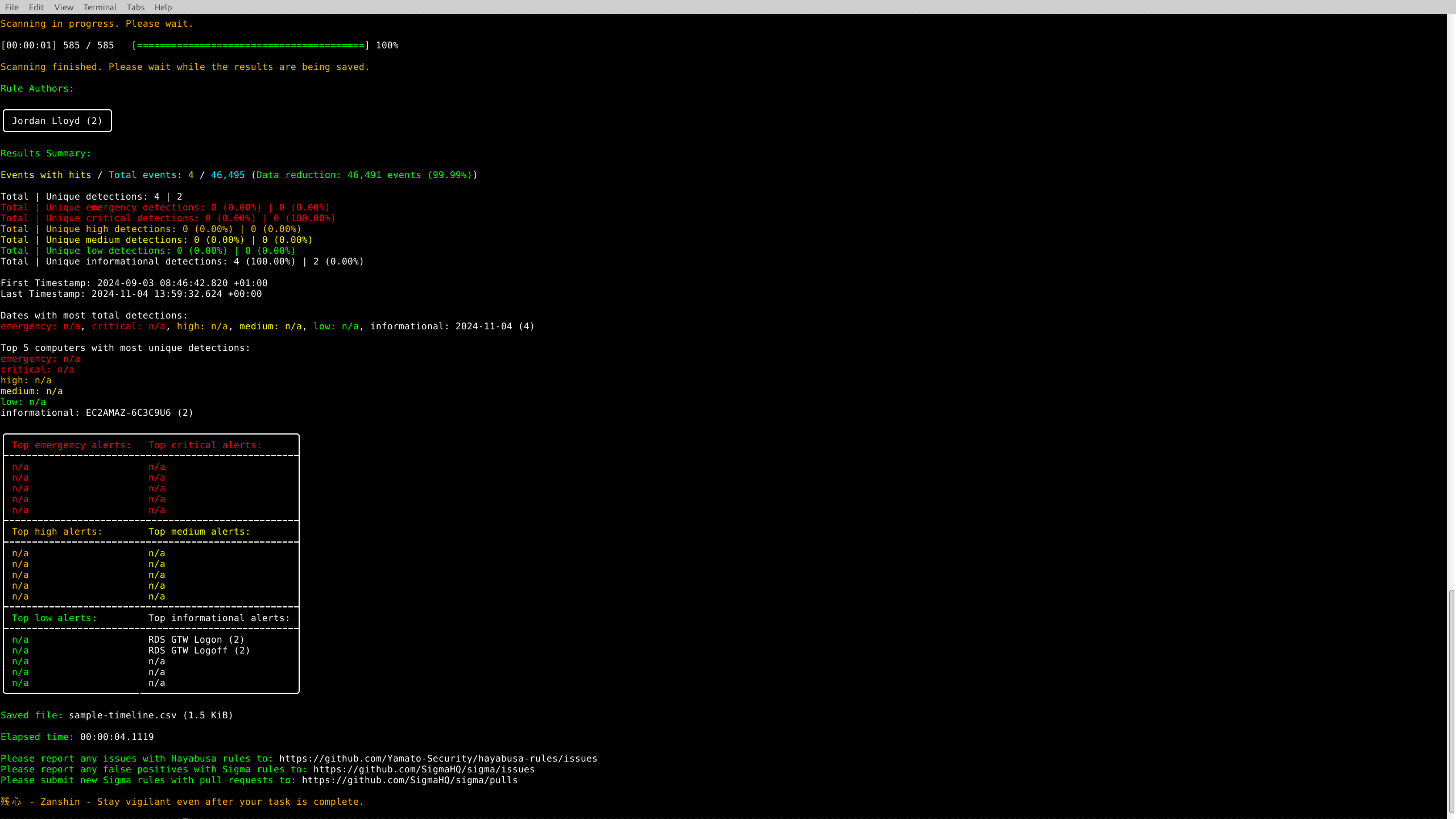
Hayabusa processes over 46,000 events and identifies 4 unique detection hits. It presents a breakdown of severity levels (emergency to informational), host systems involved, and timestamps — helping investigators quickly scope critical activity.
Sample detection events include RDP logon/logoff activity by a specific host, which could indicate lateral movement or session hijacking attempts.
Screenshot: Detection Results and Timeline Summary
3. Export the Timeline
The output CSV file (sample-timeline.csv) can be opened in WPS Office or any spreadsheet tool. This enables analysts to sort and filter by timestamp, event ID, detection rule, or host — creating a chronological investigative timeline.
CSV output is ideal for documentation, pivoting into SIEM workflows, or correlating with other forensic artefacts.
Screenshots: Timeline output opened in WPS Office, showing flagged events with detection rule names, timestamps, and host details



4. Forensic Reporting and Next Steps
Once timeline analysis is complete, investigators can:
• Document Key Events: Export filtered entries (e.g. unauthorised RDP sessions, suspicious script executions) into reports with supporting screenshots.
• Correlate with Other Tools: Use timestamps or user accounts to pivot into tools like Autopsy (for file-level analysis) or Velociraptor (for endpoint hunting).
• Generate Incident Reports: Use WPS Writer (pre-installed on the Acorn) to produce structured incident reports or executive summaries, complete with evidence references.
• Preserve Chain of Custody: Ensure the Hayabusa output and source logs are write-blocked and archived as part of the evidentiary record.

| Feature | Benefit |
|---|---|
| Onboard Sigma Engine | No external tools needed — The Acorn includes Hayabusa and up-to-date Sigma rules. |
| Timeline Clarity | Hayabusa outputs to CSV, making analysis and reporting simple. |
| Speed & Portability | Run high-speed forensic log analysis anywhere. |
| Forensic Workflow Ready | Pair Hayabusa’s logs with screenshots or reports from Velociraptor or Autopsy for cross-validation. |
Learn more about Hayabusa