
The Acorn application guide
Forensic Workbench
A recovered photograph is worth more when you can check where it came from. In this public Narcos teaching example, Workbench puts the photograph beside its file records. The image alone cannot identify the pictured substance.
Public training example · earlier interface
Examine a recovered photograph with its file records
Example input
- Supported files and artefacts assembled into a case. The lead example uses the public Narcos teaching scenario.
Result or controls shown
- Case-based file review, tagging and source-linked timeline views demonstrated on training material.
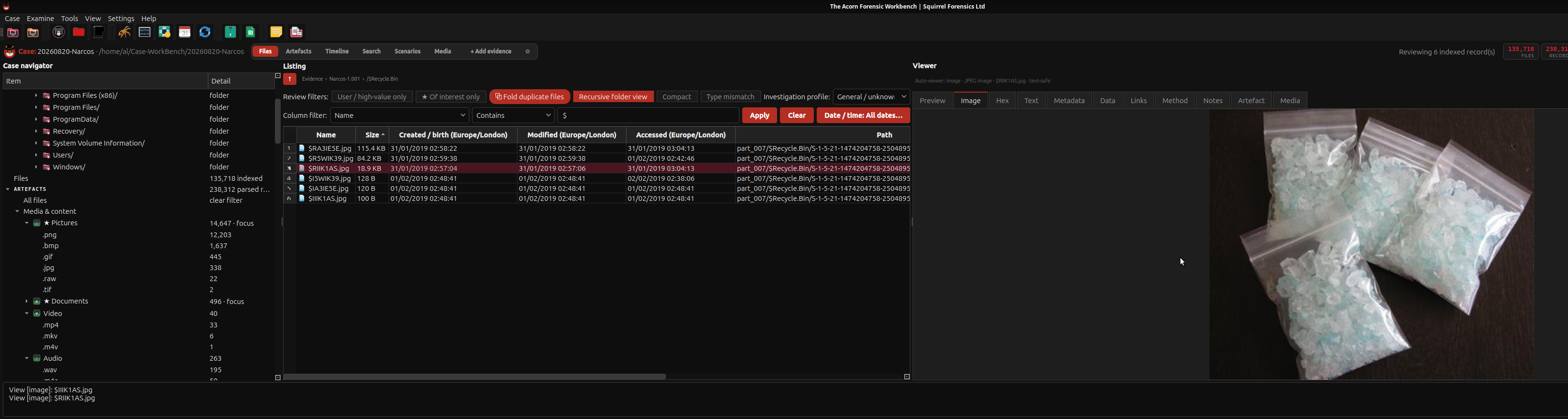 View full screen
Enlarge the screenshot to read the source records.
Earlier Workbench interface from the public Narcos teaching scenario, not a client case.
Examination steps
Steps to review in your evaluation
-
Define the question and identify the source collection. Review the recorded processing coverage before deciding which files or activity deserve attention.
-
Inspect relevant files and timeline records, then tag items with the reason they matter. Distinguish the underlying record from your interpretation of it.
-
Follow important leads back to the source and use a suitable independent check where needed. Keep processing gaps and unresolved questions in the examination notes.
Evaluate the workflow
Questions worth bringing to a demonstration
- Can you follow a selected result back to its source and distinguish source material from an examiner-created output?
- What does the supplied build show when a processing stage is skipped, unavailable or limited?
- Using a known training case, what would justify moving from a focused review to a broader examination?
Inside the examination
Examine a photograph in its file context
The Acorn brings tools into one workspace. The examiner connects the findings to the question, checks the context and decides what needs a closer look.
- 01
Define the question
What can the available files and activity records establish? Set the source, date range and permitted scope before choosing a tool.
- 02
Locate the record
Follow the relevant path, file or event. Keep its source reference and recorded time alongside the item you are reviewing.
- 03
Examine the context
Open the content, compare related records and test other explanations. A picture, page visit or search hit is a lead, not the whole answer.
- 04
Explain the finding
Record what you checked, what it shows and what remains unresolved. Keep enough context for another examiner to review the work.
Related application guides
Start with your requirements
Request an application demo
Tell us the source type and task you want to examine. We can plan a demo using suitable training material. Do not send confidential evidence.