
← The Acorn overview
The Acorn application guide
Text Lab
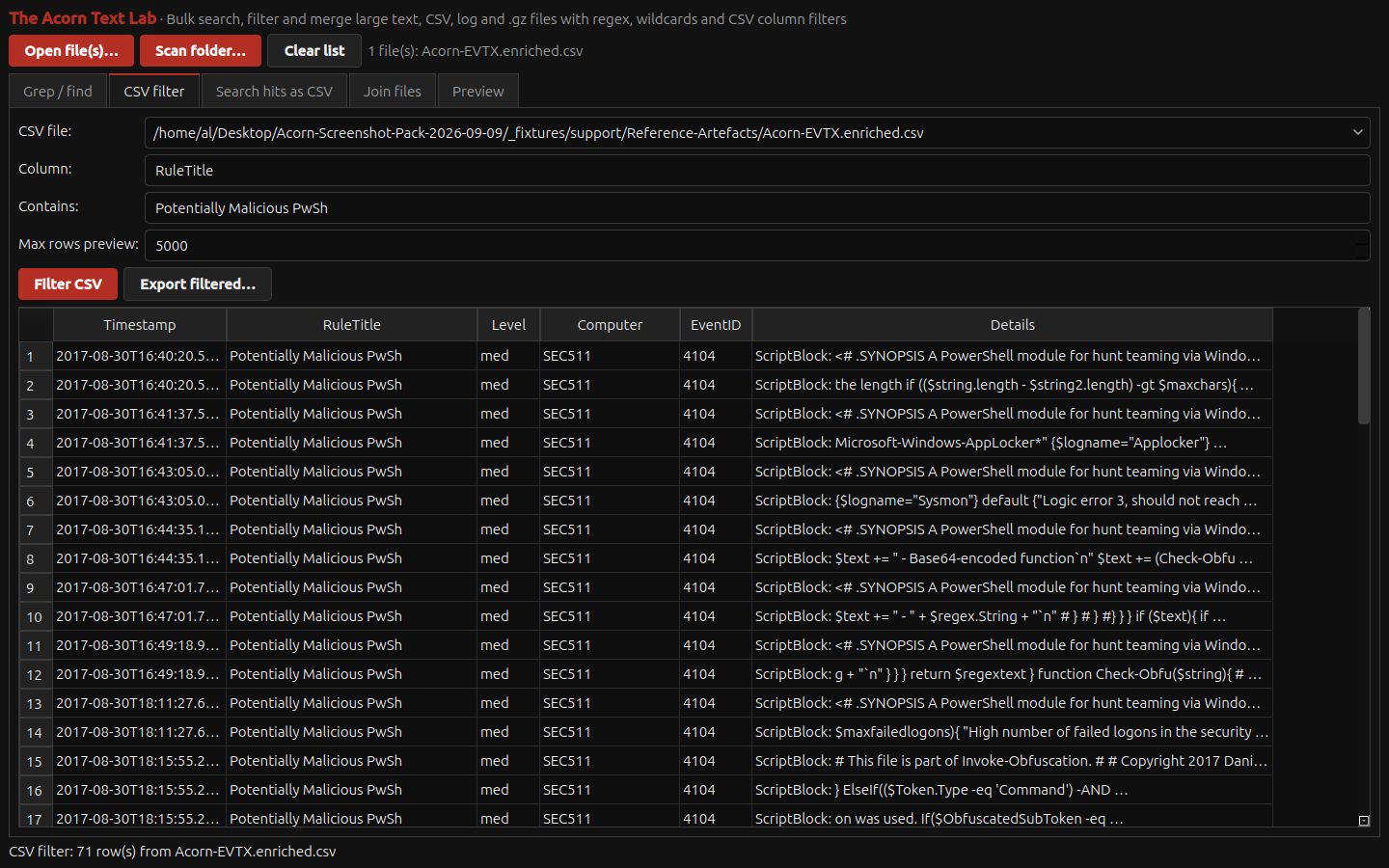
The example narrows a public DeepBlueCLI export to 71 PowerShell rule matches. Read each command beside its time, computer and event ID. A rule label is a review lead, not proof that a command completed.
Public training example
Filter a large event-log table to specific commands
Example input
- Forensic text logs and CSV records, including a public PowerShell-related example.
Result or controls shown
- Filtered tabular and text review views.
 View full screen
Enlarge the screenshot to read the source records.
Examination steps
Steps to review in your evaluation
-
Open the relevant table or text output.
-
Filter the records while retaining event IDs, times and command context.
-
Return to the underlying source before treating a match as a finding.
Related application guides
Start with your requirements
Request an application demo
Tell us the source type and task you want to examine. We can plan a demo using suitable training material. Do not send confidential evidence.