
Separate preservation from access
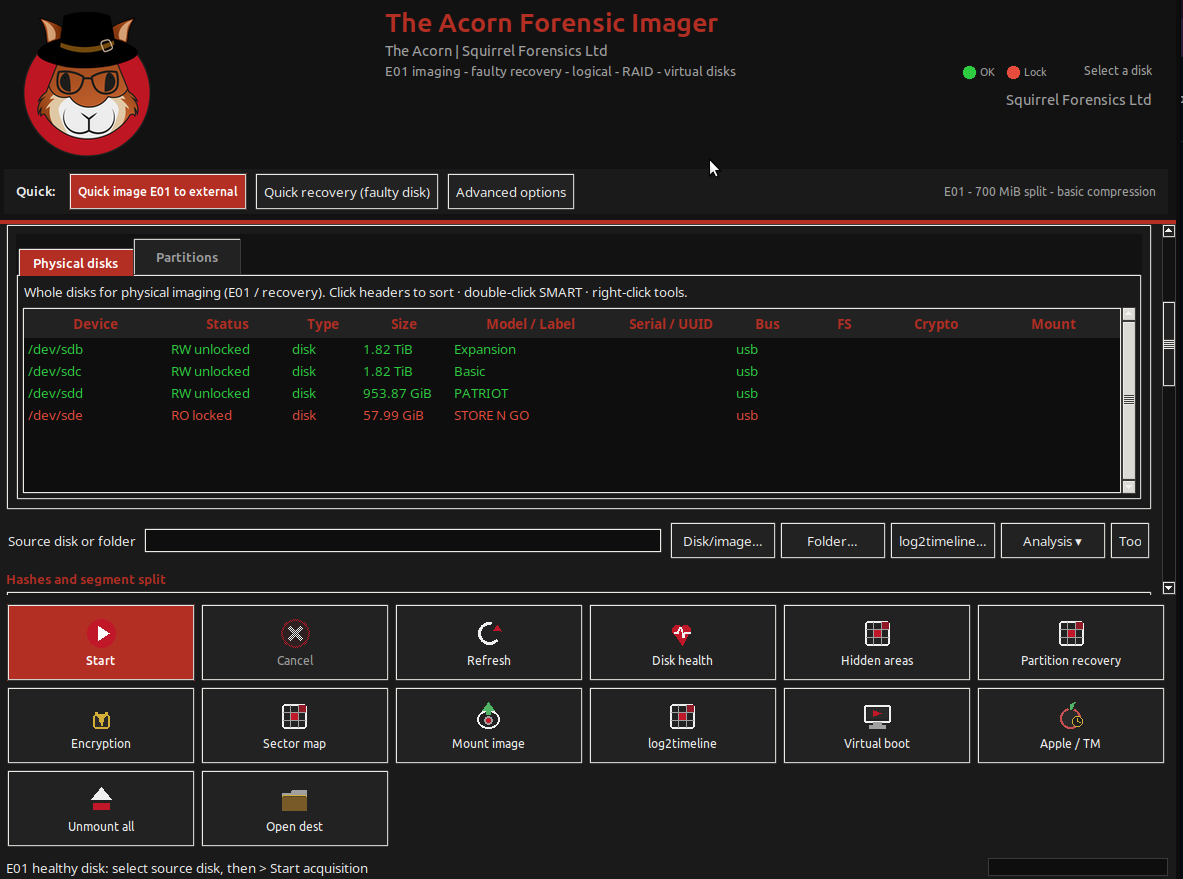
A physical acquisition can preserve encrypted sectors without first exposing their contents. A decrypted view serves a different purpose: it lets the examiner inspect the unlocked file system. Decide which outputs the instruction requires and label them clearly.
For a live, unlocked machine, the preservation decision is more complex. Volatile information and current access may matter. Do not shut it down or change its state simply to follow an offline recipe; agree the collection approach first.
 View full size
Match the credential to the volume
A BitLocker recovery password is commonly the 48-digit value associated with a recovery-key identifier. Obtain it through an authorised channel and match it to the correct volume. Do not paste recovery passwords into the public SQFR enquiry form, screenshots or routine report text.
In Acorn, select the BitLocker partition and provide the supported password, recovery password or keyfile through the mounting controls. Keep the source protected and use the resulting read-only view for examination. Preserve a record of the method without unnecessarily disclosing the secret.
Keep encrypted and decrypted outputs distinct
An encrypted acquisition and files exported from its unlocked view contain different bytes, so their hashes serve different records. Describe each output, its source and the access method. Copy selected files to the case destination and retain the original acquisition.
Before choosing equipment, ask for a known BitLocker test volume to be acquired, opened and reviewed. Check the workflow with the credential type you hold and the file-system support you need. Successful access to one sample is not a claim that a lost key can be recreated.
What to check
- Authority and the required physical or logical scope
- Credential matched to the encrypted volume
- Encrypted source, decrypted view and exports identified separately
Common questions
Can Acorn unlock a drive without a valid key or password?
This guide describes supplied-credential access. It does not promise key recovery, password cracking or a bypass of BitLocker protection.
Should I decrypt the original disk in place?
No. Preserve the source and use a read-only unlocked view or an appropriately documented working copy, rather than rewriting the exhibit.
Explore the relevant Acorn apps
Put the workflow to the test
Discuss a BitLocker examination workflow
Tell SQFR about the source types, task and equipment you need. We can discuss a focused demonstration and the configuration or quotation that fits. Do not send case evidence or credentials through the enquiry form.