
Health information is a starting point
SMART is the drive’s own monitoring information. Depending on the device, useful fields can include reported errors, temperature and indicators of worn or unreliable storage. Preserve the original report with its timestamp and device identity rather than reducing it to a single pass or fail.
Attributes and their meanings vary between manufacturers and storage technologies. Do not compare a raw value from one model with a different model as though the scale were universal. A device can fail despite reporting an acceptable overall status.
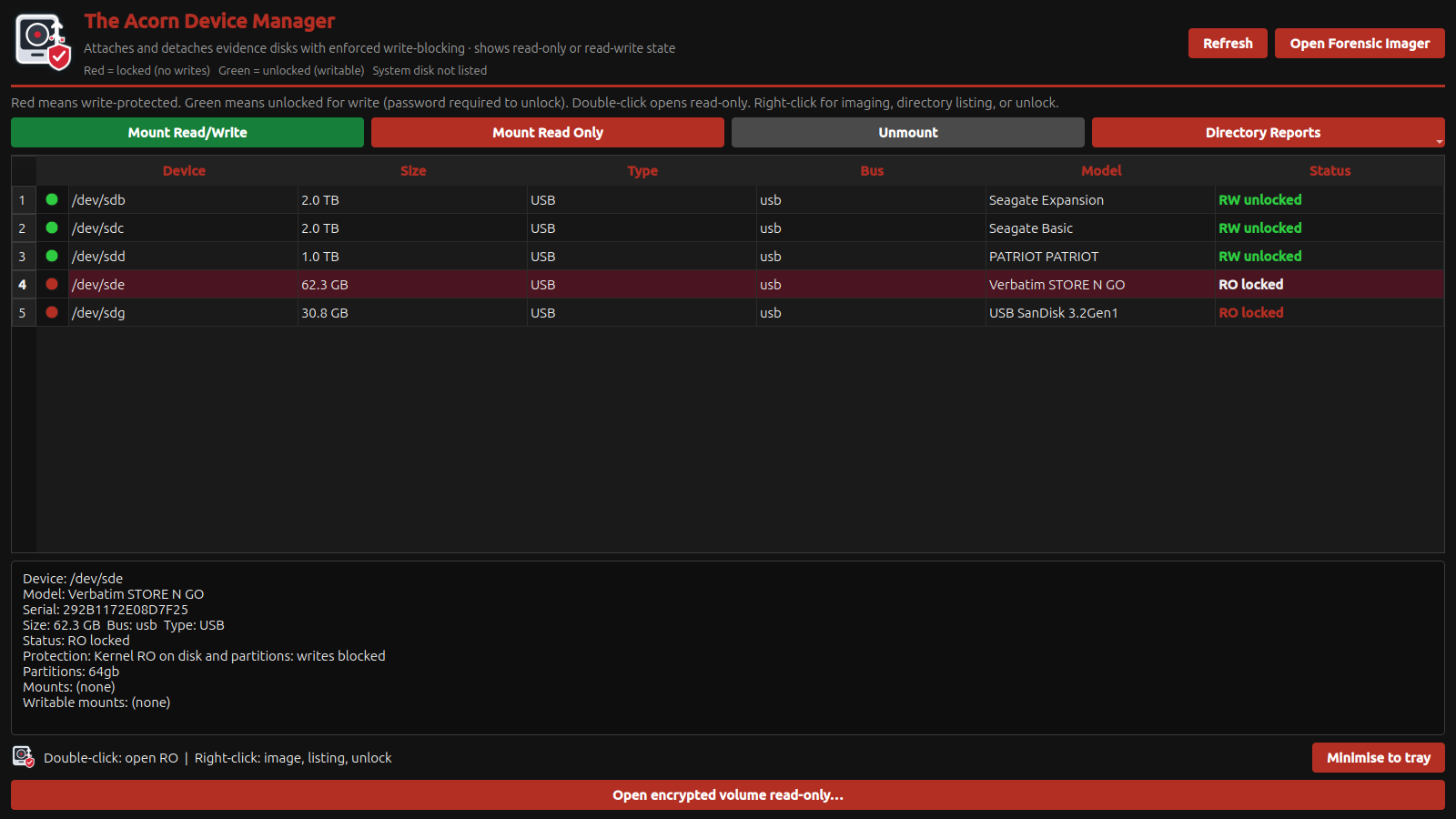 View full size
Check the connection before blaming the media
USB bridges and enclosures do not all expose the same health commands. Missing SMART data is not a clean bill of health, and it does not by itself prove the disk is damaged. Record the adapter and what information it made available.
Repeated disconnects can also involve power, cabling or a bridge. Investigate those possibilities without turning the original evidence into a hardware experiment. Avoid long self-tests on unstable exhibits merely to complete a checklist.
Turn the observations into an acquisition plan
Use Device Manager to distinguish the source from destinations and apply protection. In Forensic Imager, choose the healthy-media or resilient reading route that fits the symptoms. Keep the starting health report so later behaviour can be compared with it.
For procurement, ask SQFR to demonstrate the complete connection chain you expect to use: drive type, adapter, power and destination. The useful question is whether that configuration exposes the information and controls your workflow needs, not whether a generic screenshot contains a SMART button.
What to check
- Identity and capacity match the exhibit record
- Health information is saved or its absence explained
- Adapter, power and observed read errors inform the imaging mode
Common questions
Does a SMART pass mean the drive is safe to keep retrying?
No. Consider read errors, disconnects and physical symptoms as well. A status summary does not guarantee future readability.
Why can one adapter show less information than another?
The bridge must pass through the relevant commands. Protocol and firmware support vary, so test the actual adapter and drive combination.
Explore the relevant Acorn apps
Put the workflow to the test
Check a drive and adapter workflow with SQFR
Tell SQFR about the source types, task and equipment you need. We can discuss a focused demonstration and the configuration or quotation that fits. Do not send case evidence or credentials through the enquiry form.