Preserve the message and file before examining the content
For a suspicious invoice, keep the original attachment and the message that delivered it where available. Record the filename, source path, collection details and file hash. A renamed file or screenshot of the document may lose context needed later.
Work in the approved examination environment and keep originals separate from exports. Do not click embedded links or enable active content to see what happens. Static review and controlled execution are different tasks with different safety requirements.
 View full size
Follow the right-click result to the underlying record
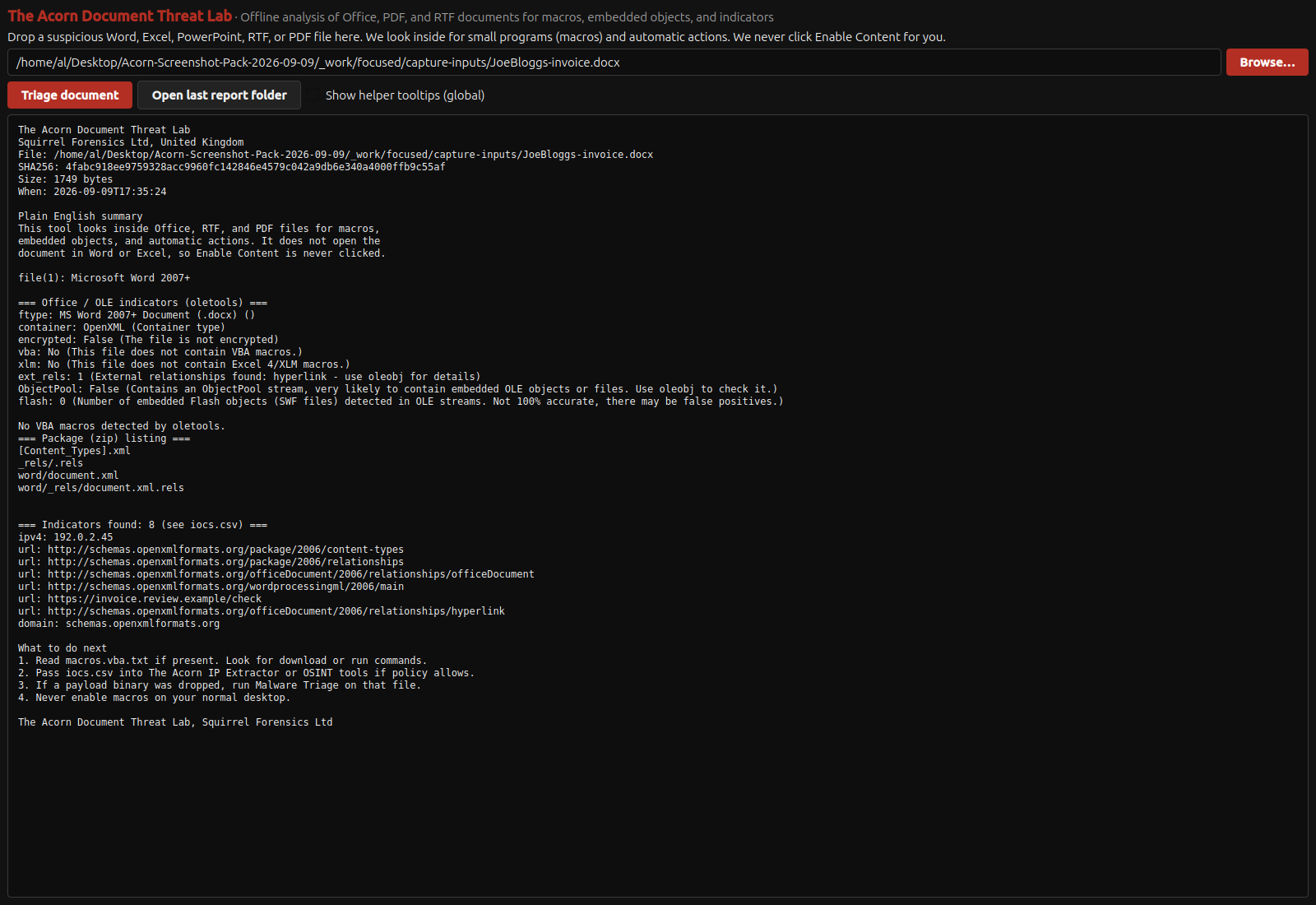
Acorn’s right-click triage routes cover supported PDF and Office documents, Windows event logs (EVTX), Master File Table records (MFT), browser records, Windows shortcuts (LNK) and Apple property lists (PLIST). Each route handles its own recognised input; this is not a claim that every file extension produces the same report.
For a document, review what the tool actually reports about its structure, metadata or embedded objects. Retain the original file and the report references. An unusual action, script or link deserves investigation, but benign documents can also contain interactive features.
Answer the incident question, not just the file question
A static finding may explain why an attachment warrants closer review. It does not establish who opened it, whether code executed or whether data left the device. Seek endpoint, process, network or account records for those separate questions.
Ask SQFR for a demonstration using a safe training file, including the route from a finding back to its source. Confirm the formats and versions relevant to your work. If the next step requires a specialist sandbox or remote Windows environment, keep that activity and its outputs separate from the original triage record.
What to check
- Original attachment and delivery context retained
- Static indicators tied to the file and report reference
- Execution and compromise tested against separate records
Common questions
Does an embedded script prove a PDF is malicious?
No. Assess its content and behaviour in context using an appropriate method. Presence alone is not proof of malicious execution on a particular device.
Is static triage a replacement for a sandbox?
No. It can guide the next step, but it does not reproduce runtime behaviour. Any execution testing needs an appropriately isolated and authorised environment.
Explore the relevant Acorn apps
Put the workflow to the test
See right-click document triage in Acorn
Tell SQFR about the source types, task and equipment you need. We can discuss a focused demonstration and the configuration or quotation that fits. Do not send case evidence or credentials through the enquiry form.