
Preserve the browser data as a set
Identify the relevant browser profile and collect the records through the agreed method. SQLite databases can have associated write-ahead log files, often ending in -wal, that contain recent changes. Preserve associated files where present and work from controlled copies.
Opening a database with an ordinary application can change its state or apply pending changes. Record what was supplied, the acquisition context and the tool version. Do not promise that a single copied history file contains every recent event.
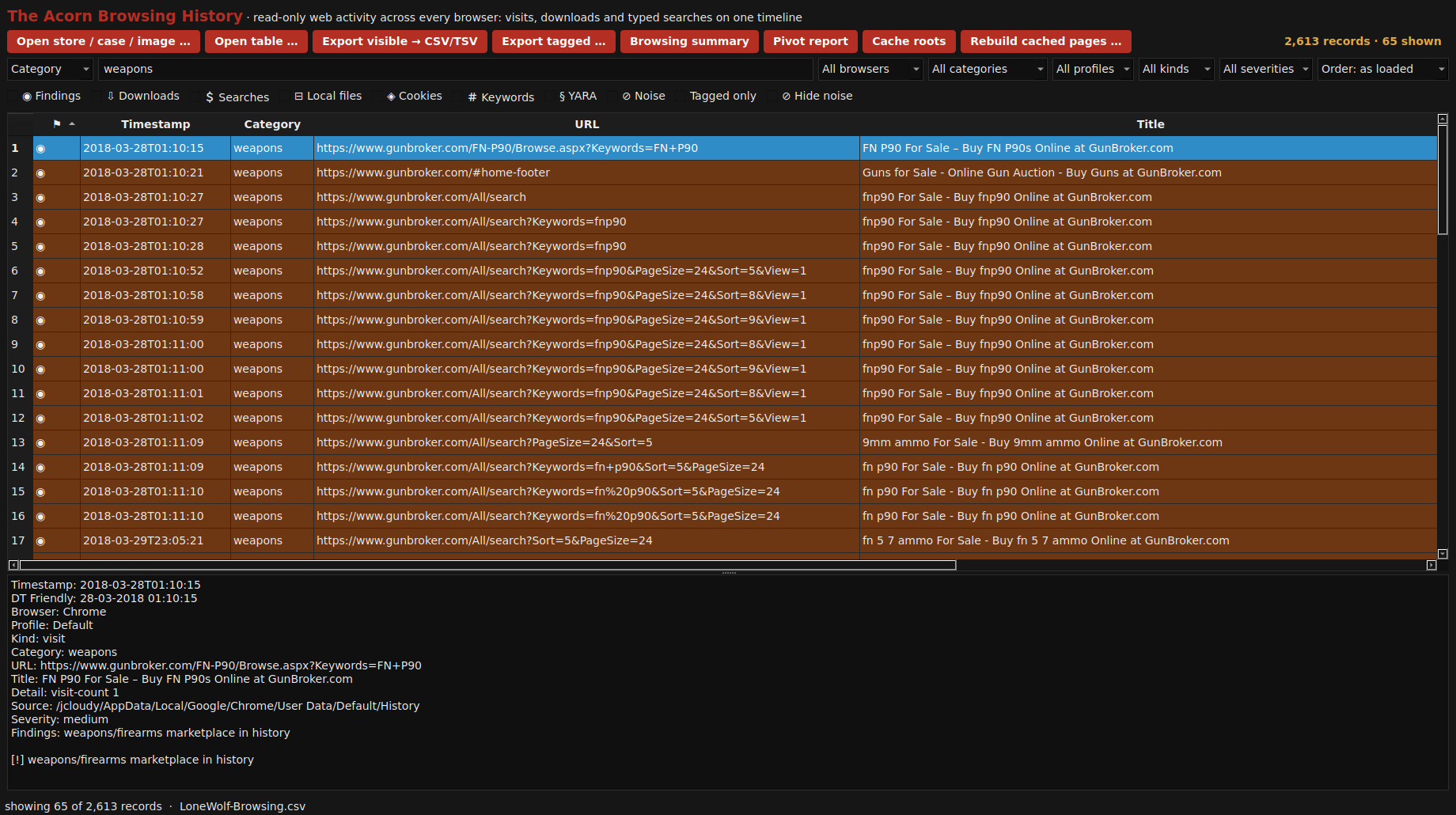 View full size
Build a timeline that keeps the source in view
Separate visits from downloads and note which source table or record supports each event. Retain the URL, recorded time and relevant path or identifier. Check time zones and the meaning of each timestamp before aligning it with other sources.
For an alleged upload, compare the browser activity with the named file and any authorised account or provider records. A recorded download is not an upload; a typed address is not proof of completed access. Browser synchronisation and shared use can also affect how confidently an event can be linked to one device or person.
Show what changes the conclusion
A useful demonstration begins with a visit to a sharing site and asks what it proves. Add a separate account event identifying a file transfer, then compare its account, file reference and time. The stronger conclusion comes from the additional evidence, not a more colourful timeline.
Ask SQFR to run your intended review against a suitable training set. Check the supported browser and data version, filtering, export and the route back to the original record. Keep any gaps, private-browsing limits or absent provider records in the final explanation.
What to check
- Profile databases and associated files preserved together
- Visits, downloads and transfer records kept distinct
- Time basis and original row references retained
Common questions
Does a website visit prove a document was uploaded?
No. It can support a line of enquiry. A completed transfer needs further evidence, such as relevant provider events or endpoint records.
Will private browsing leave a complete history?
Do not assume so. The available records depend on the browser, settings, activity and acquisition. Absence of a history row is not proof that a website was never used.
Explore the relevant Acorn apps
Put the workflow to the test
Evaluate a browser-evidence review workflow
Tell SQFR about the source types, task and equipment you need. We can discuss a focused demonstration and the configuration or quotation that fits. Do not send case evidence or credentials through the enquiry form.